

How I Gave My Google TV a Serious Speed Boost | Tech News
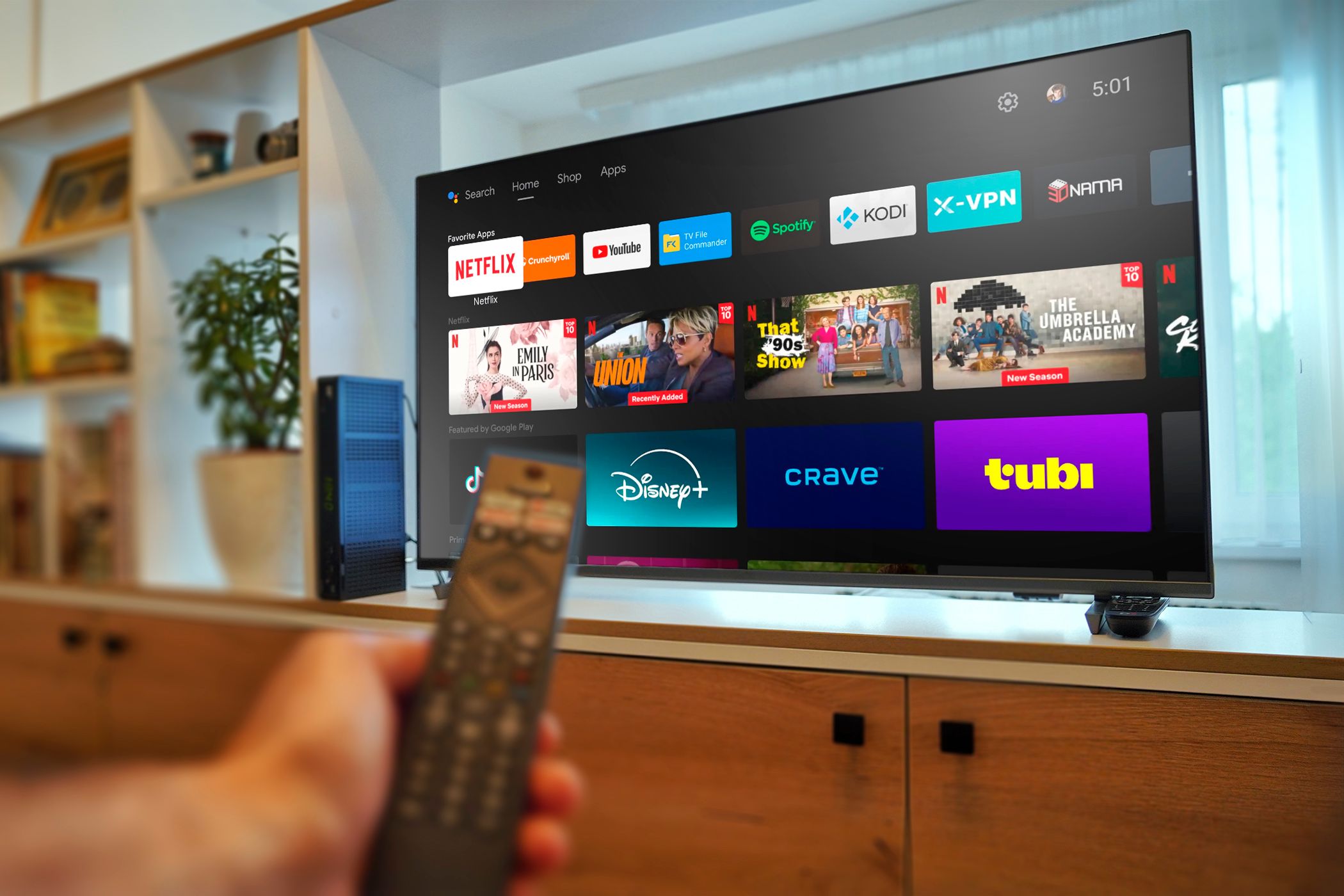
Imagine your Google TV responding instantly, apps launching in a flash, and menus gliding smoothly. That kind of speed isn’t just for new devices. With a few quick tweaks, you can make your Google TV feel fast and fresh again.
8. Turn on Quick Start
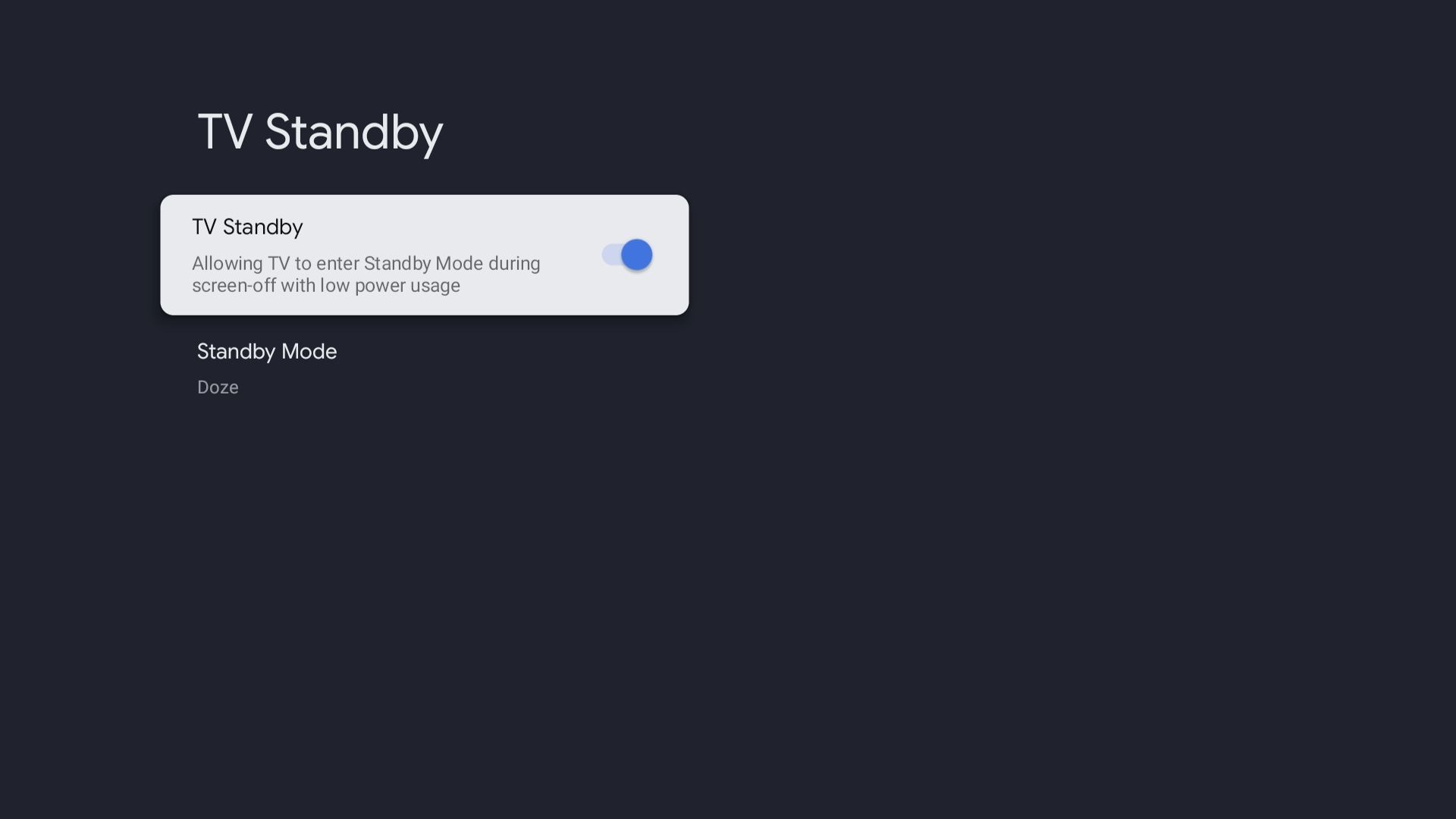
Most Google TV models come with the Quick Start feature. When enabled, your TV enters a low-power standby mode instead of fully powering off. This way, the next time you turn it on, it skips the splash screen and jumps straight to the home screen.
It may only save a few seconds, but those seconds matter when you’re staring at the screen.
To enable: Go to Settings > System > Energy Saver or Power and Energy, find Quick Start or TV Standby, and turn it on.
7. Use Apps Only Mode
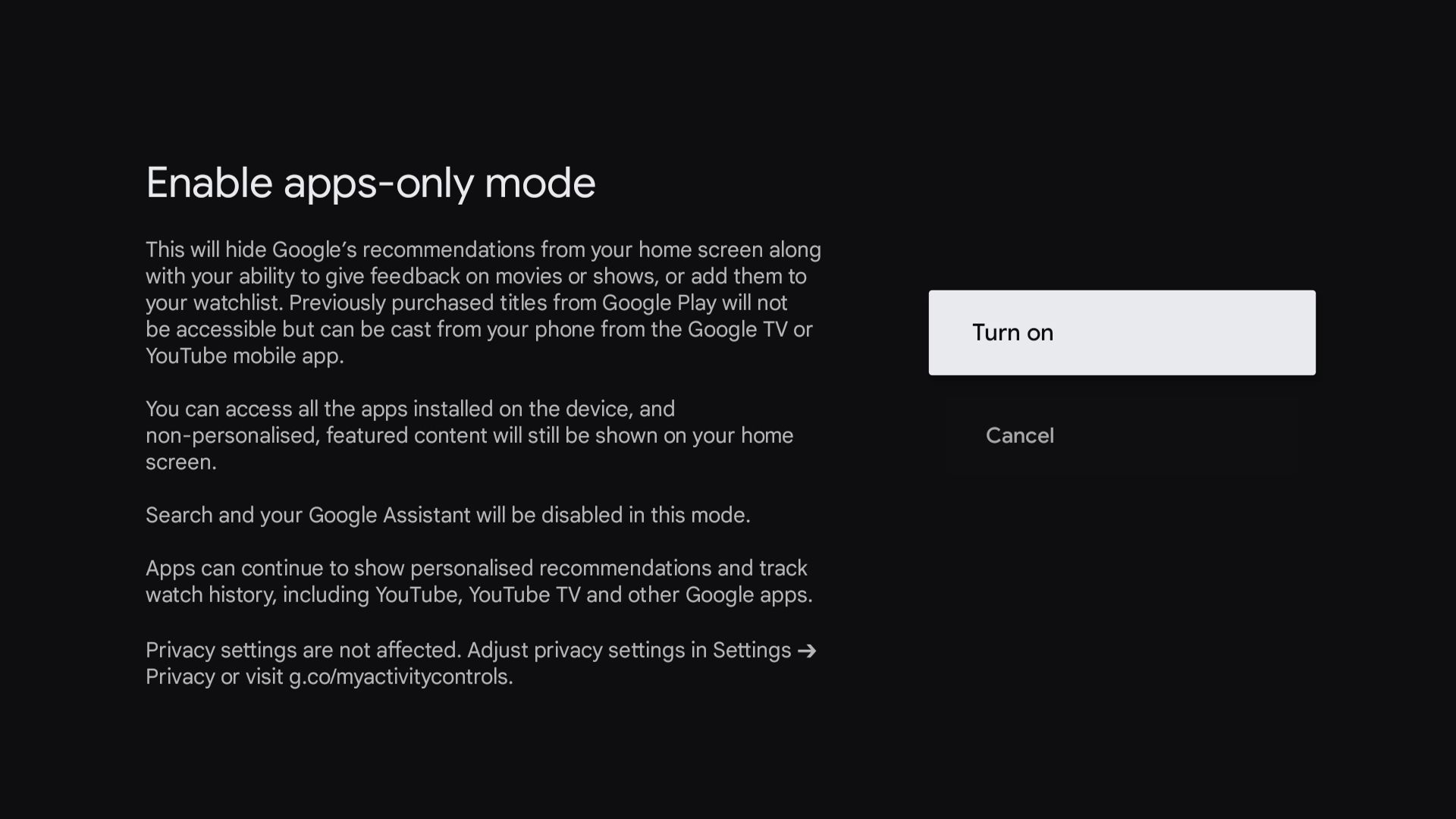
By default, your home screen is filled with recommendations and trending content. When you enable Apps Only Mode, all that extra content disappears, leaving you with a simple, app-focused interface. This means less background activity, faster navigation, and less lag.
The tradeoff is you can’t add movies to your watchlist or give feedback, but the performance boost is worth it.
To enable: Settings > Accounts & Sign In > [Your Account] > Apps Only Mode, then turn it on.
6. Clear the Cache
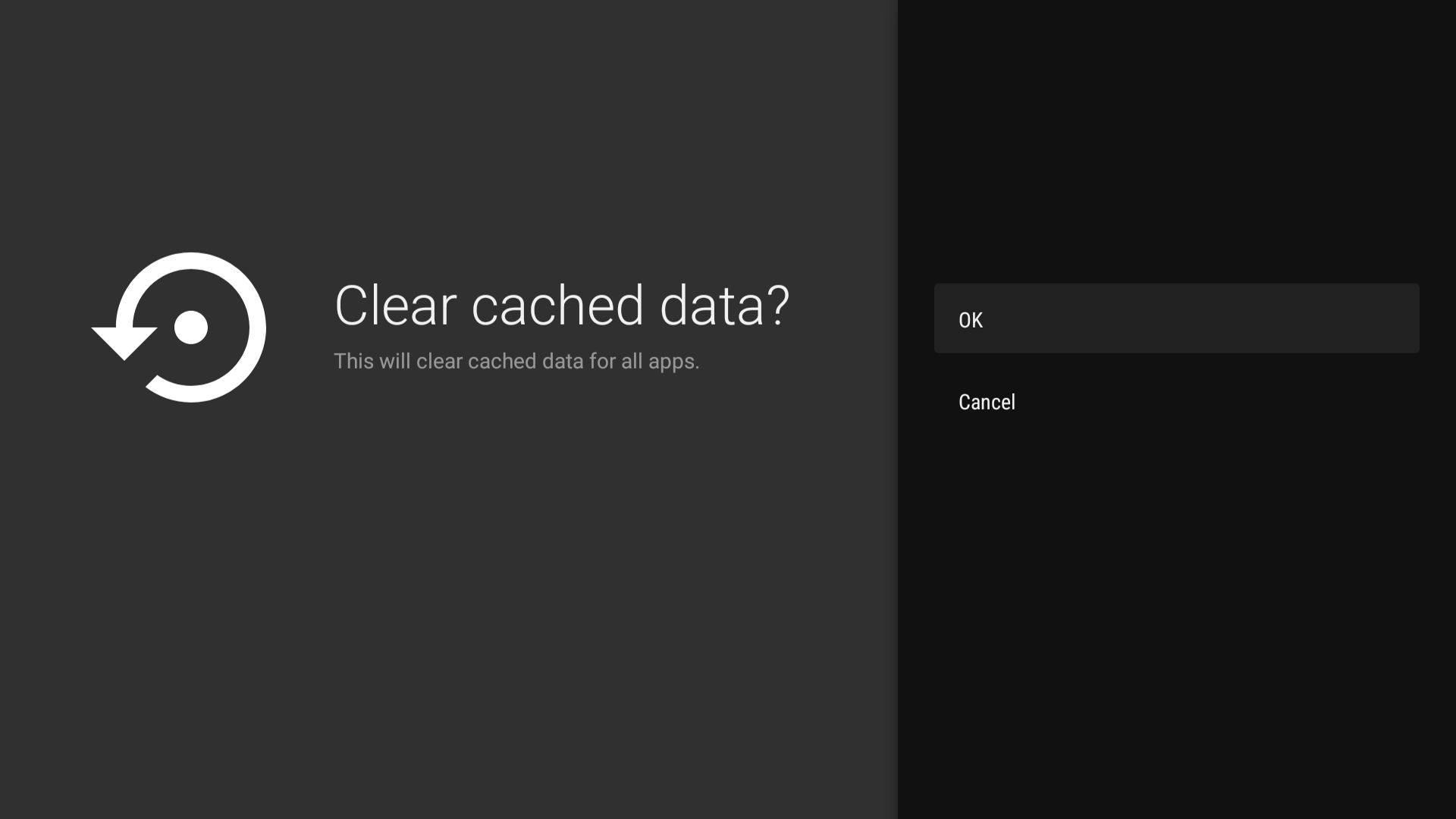
Apps accumulate cache over time, which can slow things down or even cause crashes. Clearing the cache keeps your TV running smoothly:
- Settings > System > Internal shared storage > Cached data, then confirm to clear.
- Or Settings > Apps > See all apps, select an app, then tap Clear Cache.
This won’t delete your data or login info—just temporary files.
5. Reduce or Disable Animations
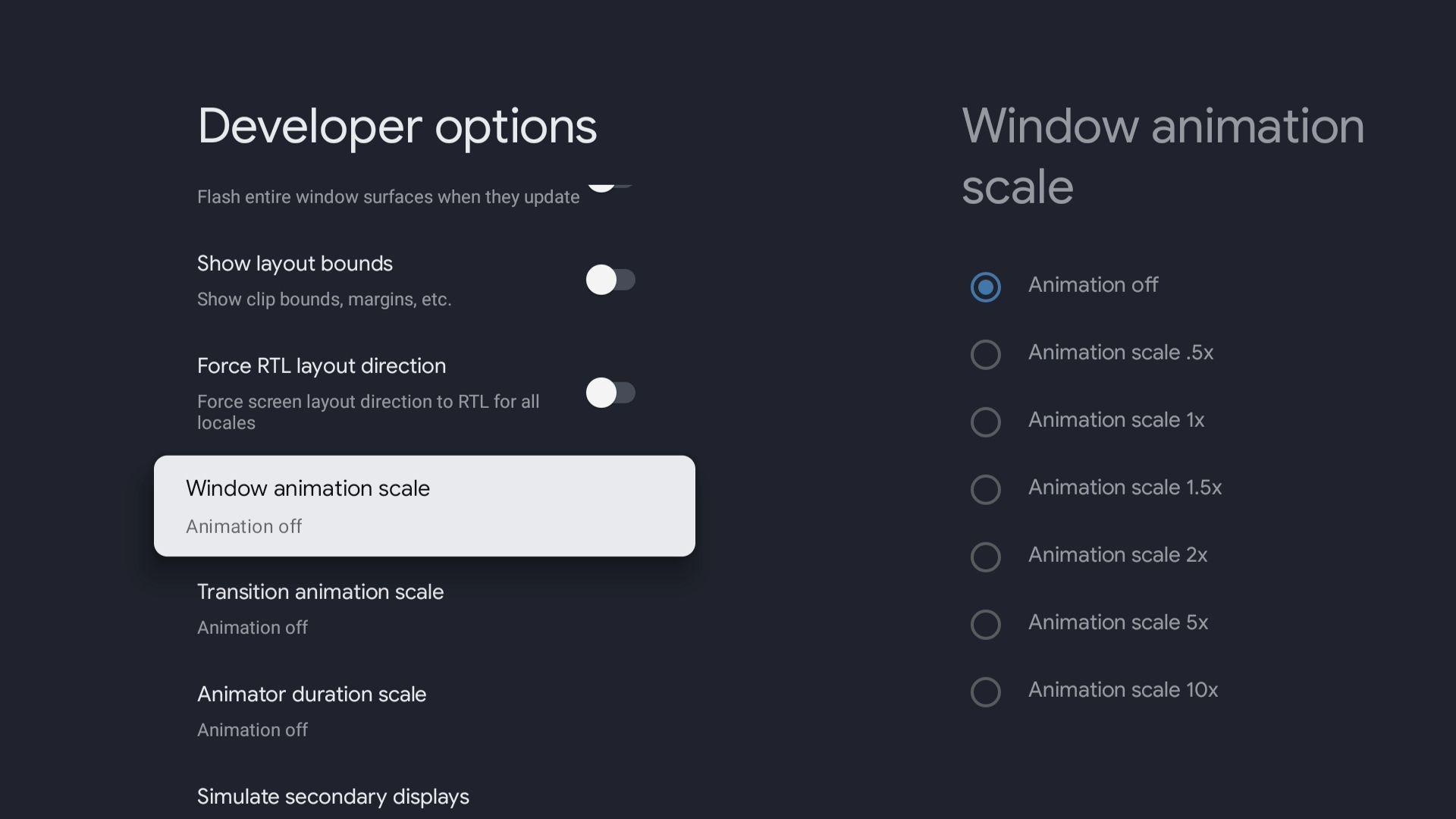
The interface is full of subtle animations that look nice but can slow things down. Disabling or reducing them makes navigation feel much snappier.
- Open Settings.
- Go to System > About.
- Find Build Number and press OK on your remote seven times to unlock Developer Options.
- Go back to System and select Developer Options.
- Find Window animation scale, Transition animation scale, and Animator duration scale, and set each to 0.5x or Off.
4. Limit Background Processes
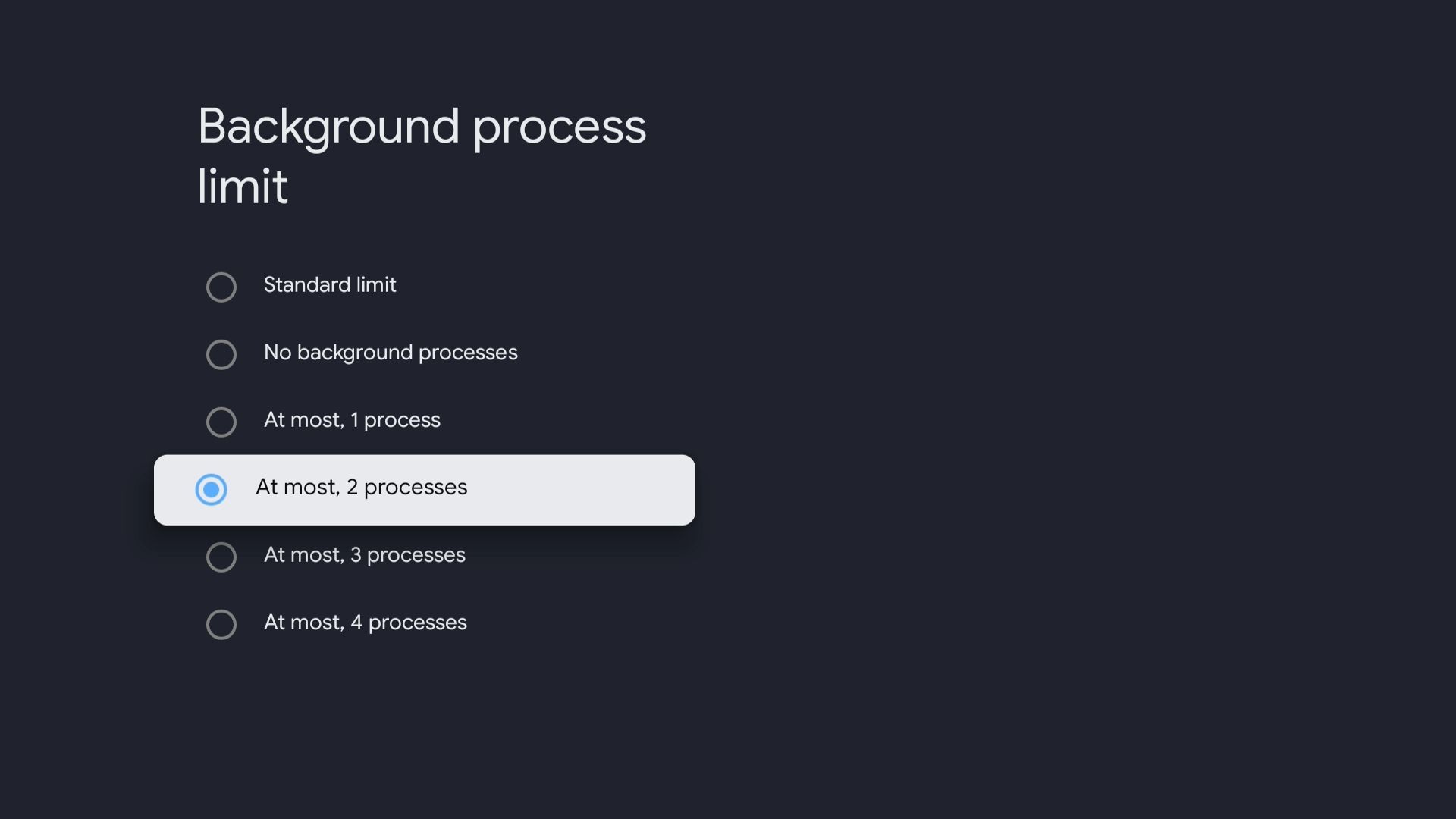
When you switch apps, the previous one often keeps running in the background, using up memory. Limiting background processes in Developer Options helps keep things running smoothly:
Settings > System > Developer Options > Background process limit, then choose at most 2 or 3 processes.
3. Keep Apps and System Updated
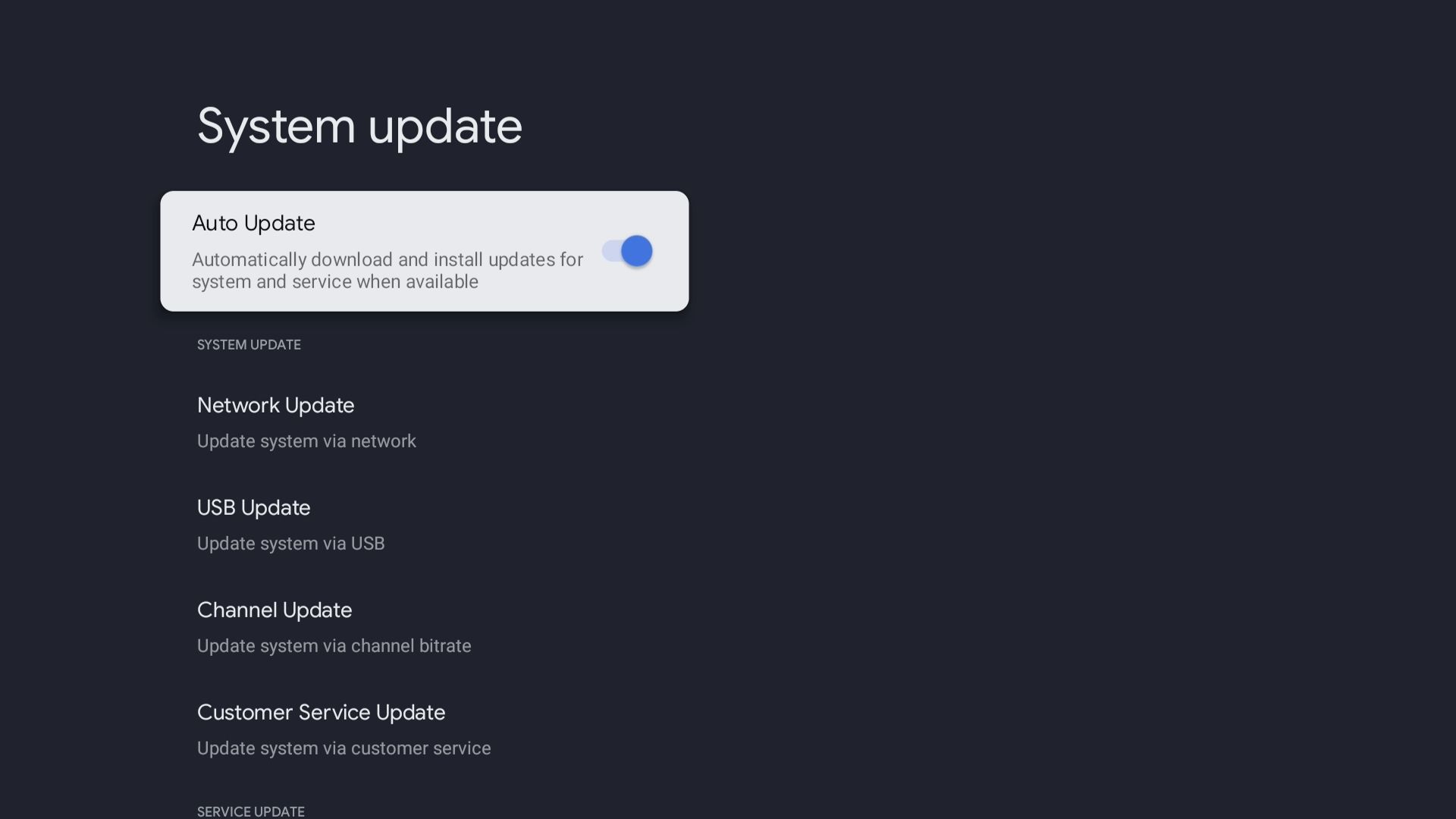
Developers and Google regularly release updates to fix bugs and improve performance.
- Settings > System > About > System update, and enable auto-update.
- For apps: Open Google Play Store, Manage apps & games > Updates > Update all, or set to auto-update.
2. Free Up Storage
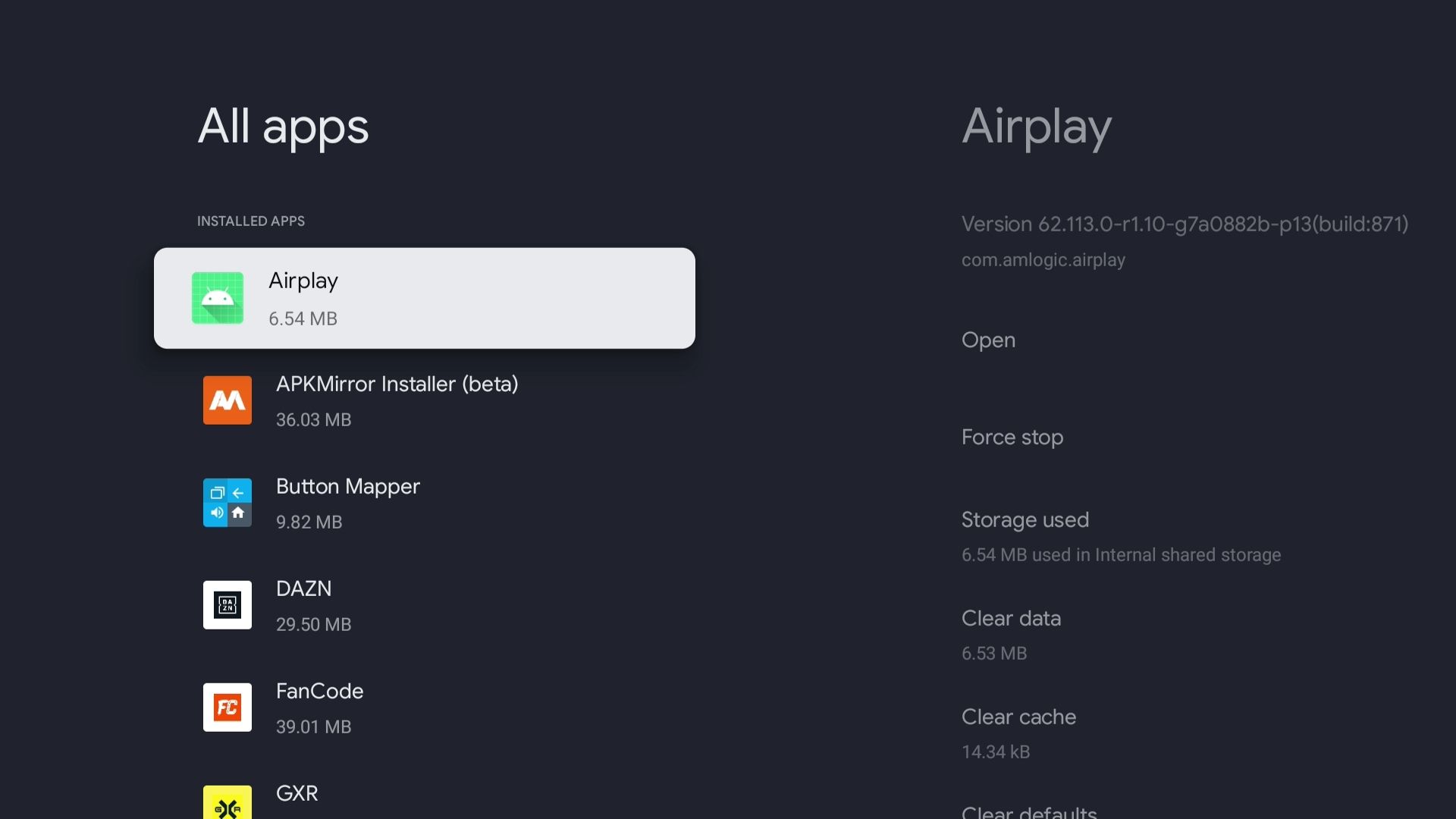
Low storage can cause lag. Free up space by uninstalling unused apps:
- Settings > System > Storage > Internal shared storage to check available space.
- Settings > Apps > See all apps, then uninstall apps you don’t use.
1. Restart or Reset the TV
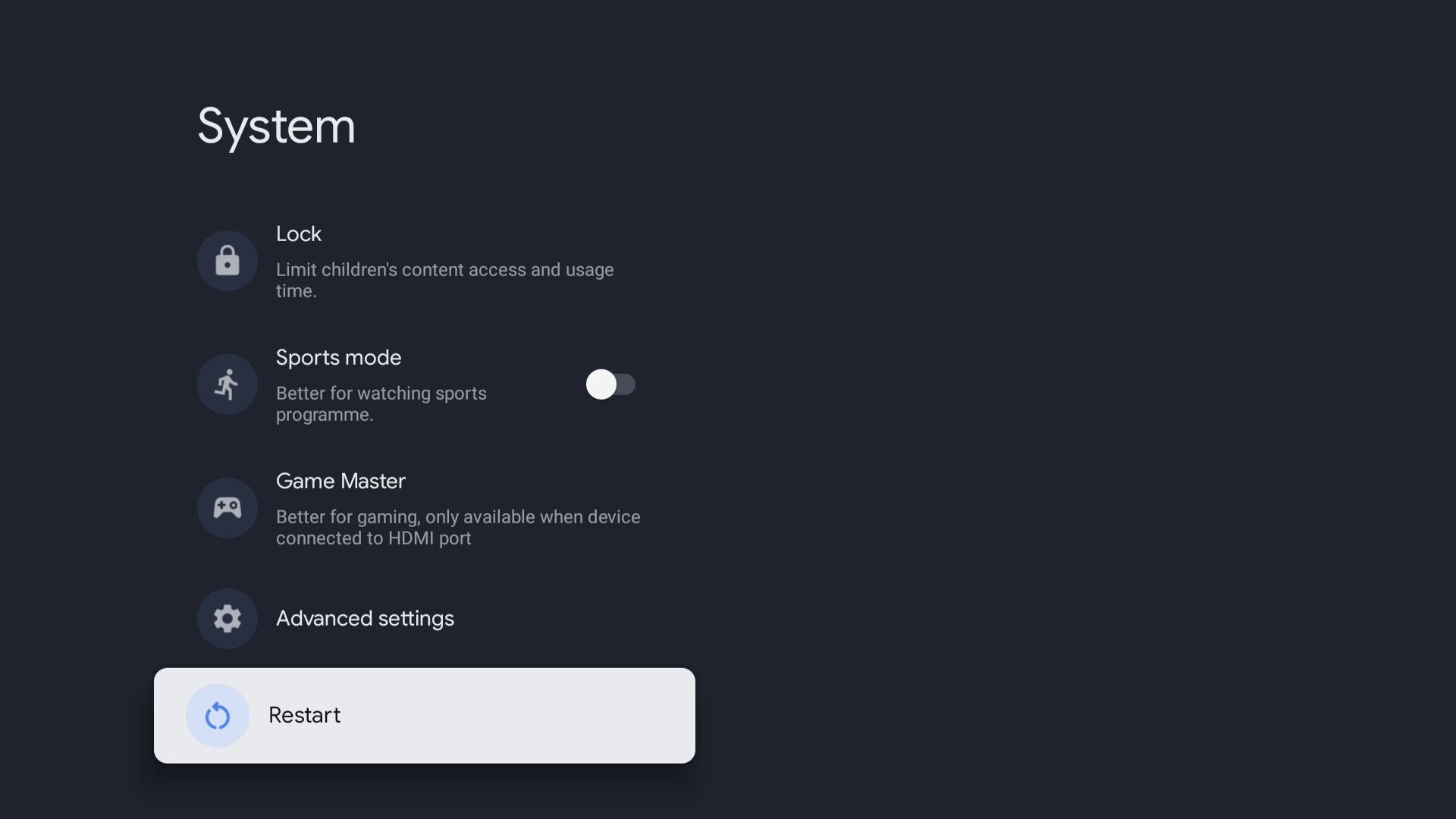
With Quick Start enabled, your TV rarely fully shuts down. Restarting occasionally helps free up resources.
Settings > System > Restart to fully reboot.
If that doesn’t help, consider a factory reset (note: this erases all data and apps).
Your Google TV is just like a smartphone or computer—it’s normal for it to slow down over time. Don’t rush to replace it; try these quick fixes and you might give it a new lease on life!
This article was automatically curated by MakeUseOf for tech enthusiasts.